How to View, Filter, and Manage Your Posts in Typoro
Managing your LinkedIn posts is easy with Typoro. Here’s how to view, filter, and create posts directly from your dashboard.
Log In to Typoro
Head to app.typoro.com and log in to your account.
Go to the Posts Section
From the left-hand menu, click on Posts.
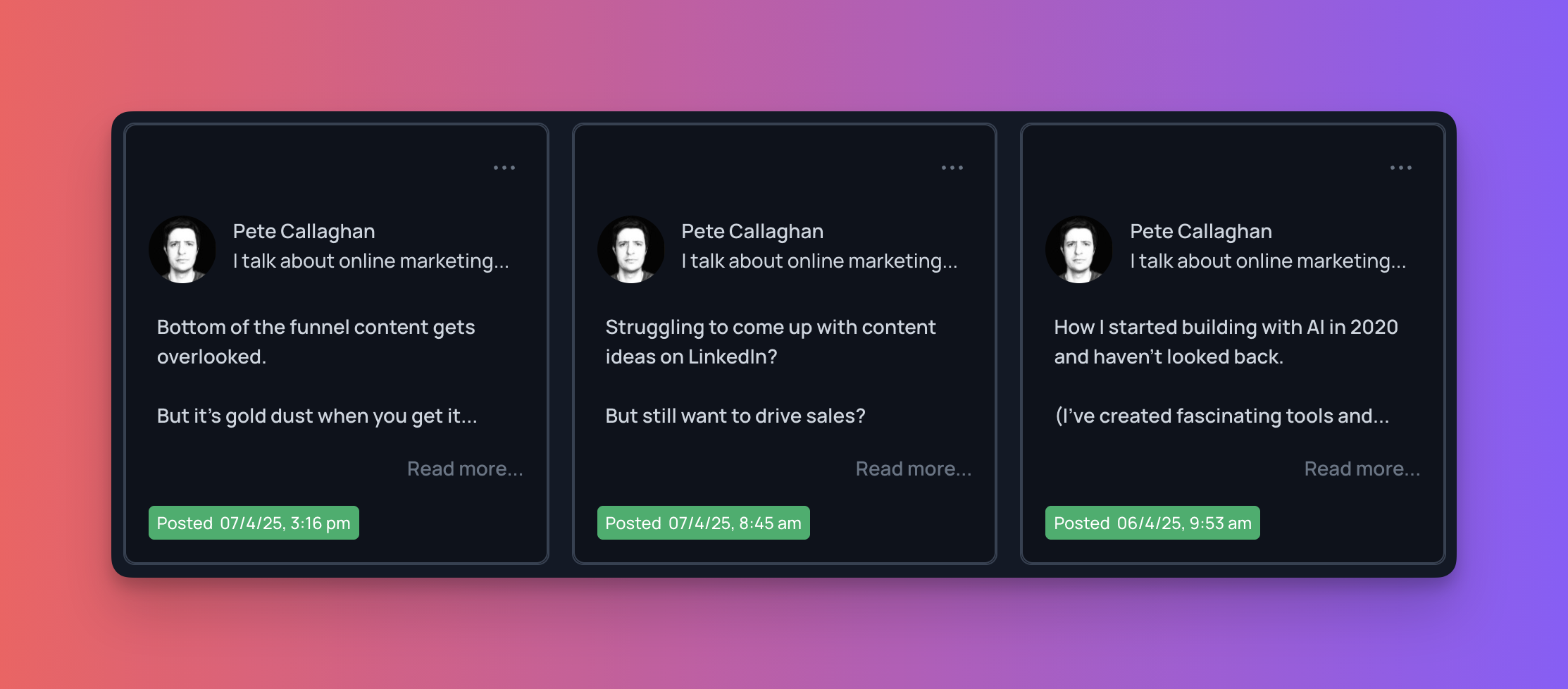
Here, you’ll see all your LinkedIn posts created in Typoro. You'll see drafts, scheduled, or already published.
Choose Between List View or Calendar View
- List View: Displays your posts as individual cards.
- Calendar View: Lets you see when each post was or will be published.
Filter Your Posts
Use the filter options above the post list to view posts by status:
- Draft
- Scheduled
- Posted
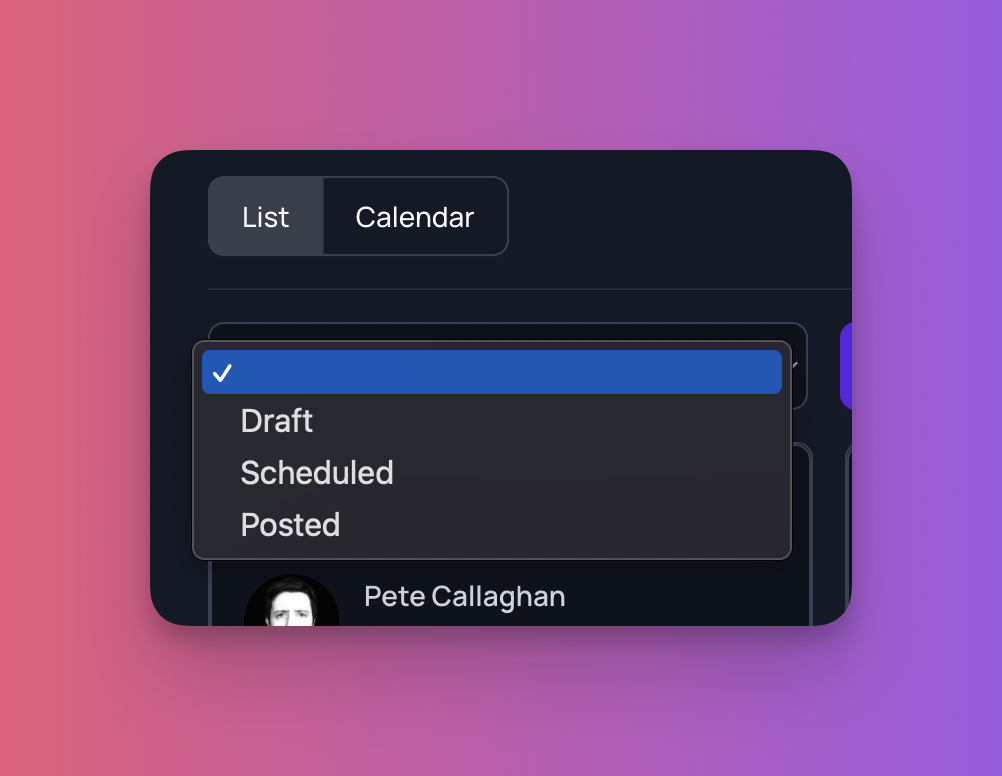
Select your filter and click Apply to update the view.
Expand Post Previews
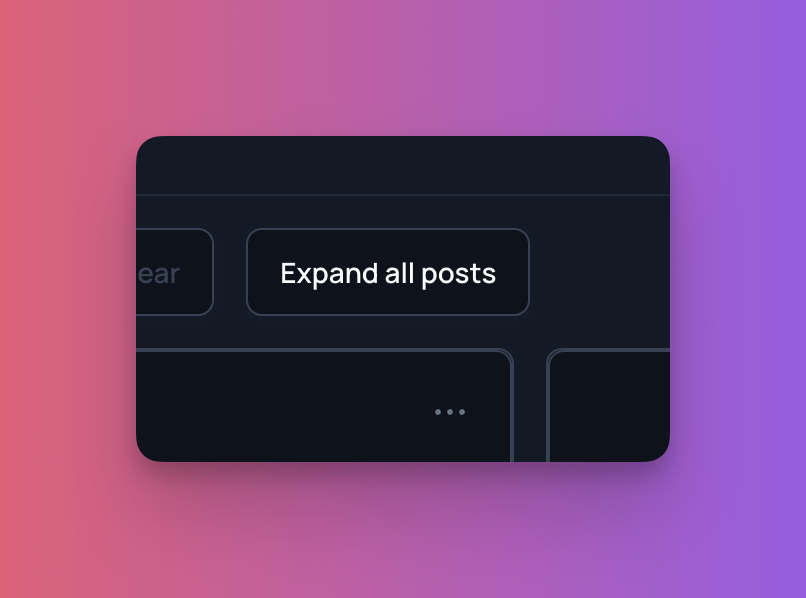
Click Expand All Posts to preview the content of each post in the list.
Search Posts
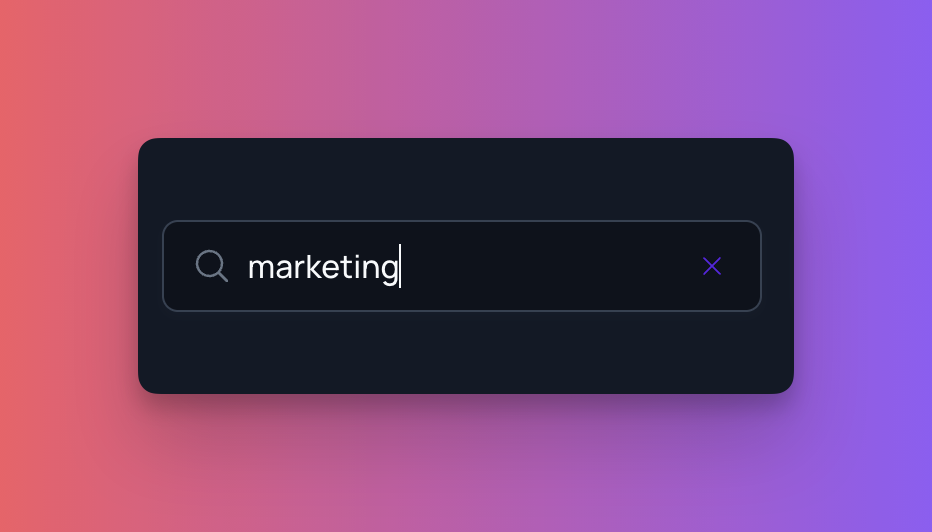
Use the search bar in the top right to quickly find a specific post by entering keywords from the post content.
Create a New Post
From the Posts section, you can:
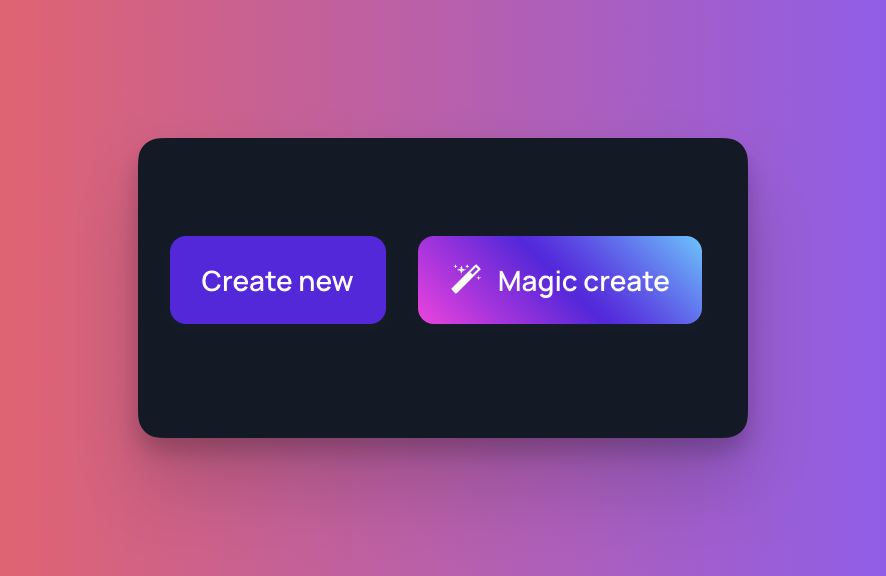
- Click Create New Post to start a post manually, or
- Use Magic Create to generate a post using AI based on your input.
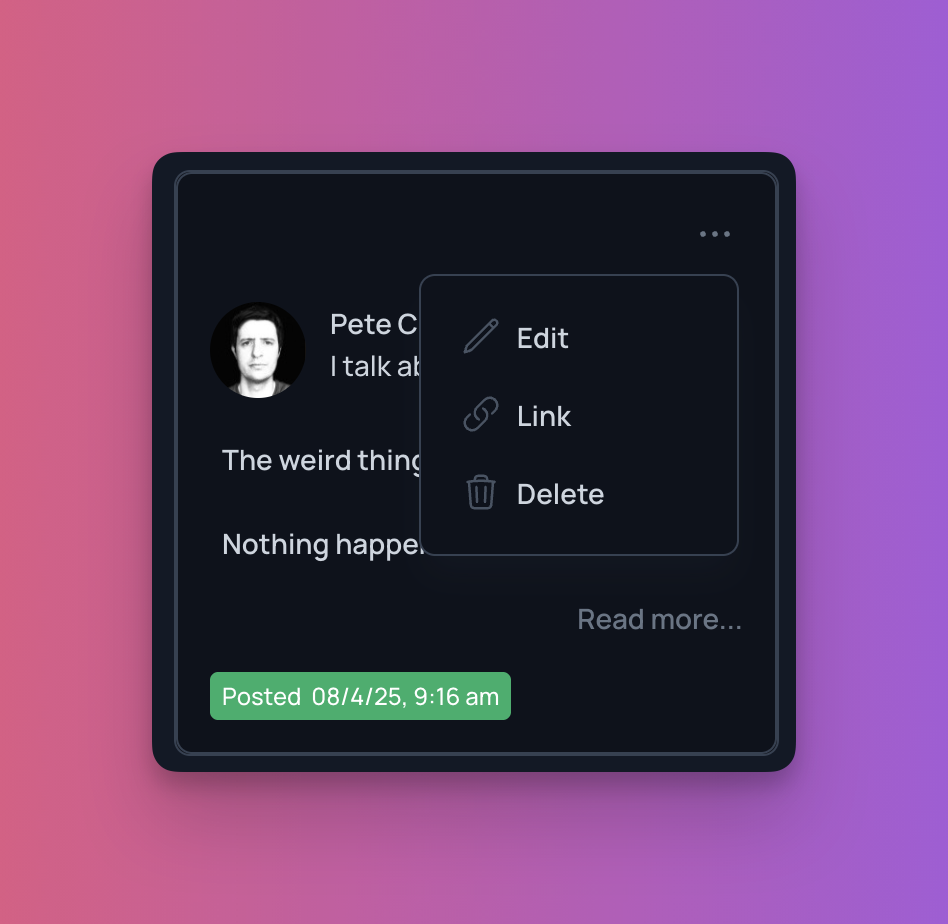
Actions menu
Click the three dots ... on the post and you can
- Edit
- Schedule (only if not scheduled)
- Delete
- View link (only if published)